
What this does. You upload a spreadsheet, or a spreadsheet plus a ZIP of essay files. TBASE checks every row, matches students in the class, and scores the papers with the same essay scoring already used for one paper at a time. Finished reports show on the teacher dashboard for each student and in the class summary, the same way as any other scored essay. Students, campus dashboards, and district dashboards use those same saved reports.
Who can do this
Teachers can upload essays for their own classes. Campus administrators can upload for classes on their school license. The license must include essay scoring, and the school must still have student seats if new students need to be created.
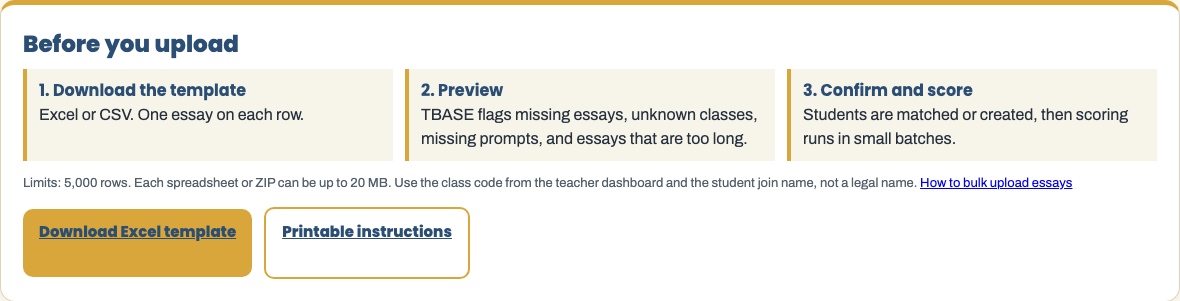
Step 1. Download the Excel template
- Sign in and open Bulk upload essays. Teachers can also start from the teacher dashboard. Campus staff can start from the campus dashboard.
- Select Download Excel template. The workbook has an Instructions sheet and an Essays sheet with one example row.
- Delete the example row before you upload. Save the file as Excel (.xlsx) or as CSV.
Step 2. Fill in the columns
- Student name. Use the join name or identifier already used in TBASE, such as Dolphin or Student 4. Do not type a legal name.
- Class code. Copy it from the teacher dashboard. It is not the school access code.
- Grade. For example 4 or 5.
- Prompt. Use a library prompt id, paste the full prompt text from the library, or paste your own prompt.
- Essay text. Paste the full essay into the cell. Line breaks inside the cell are fine.
- Passage. Leave this blank when the prompt is a library id or the full library prompt. If you write your own prompt, paste a passage of at least 40 words.
One row, one essay. Keep the whole essay in a single cell. Do not split a paper across rows.
Step 3. Or send files in a ZIP
If the papers are already saved as .docx, .pdf, or .txt files, zip those files. In the spreadsheet, leave Essay text blank and fill File name with the file name, such as Student 4.docx. On the upload page, choose the spreadsheet and the ZIP together.
Step 4. Preview and fix errors
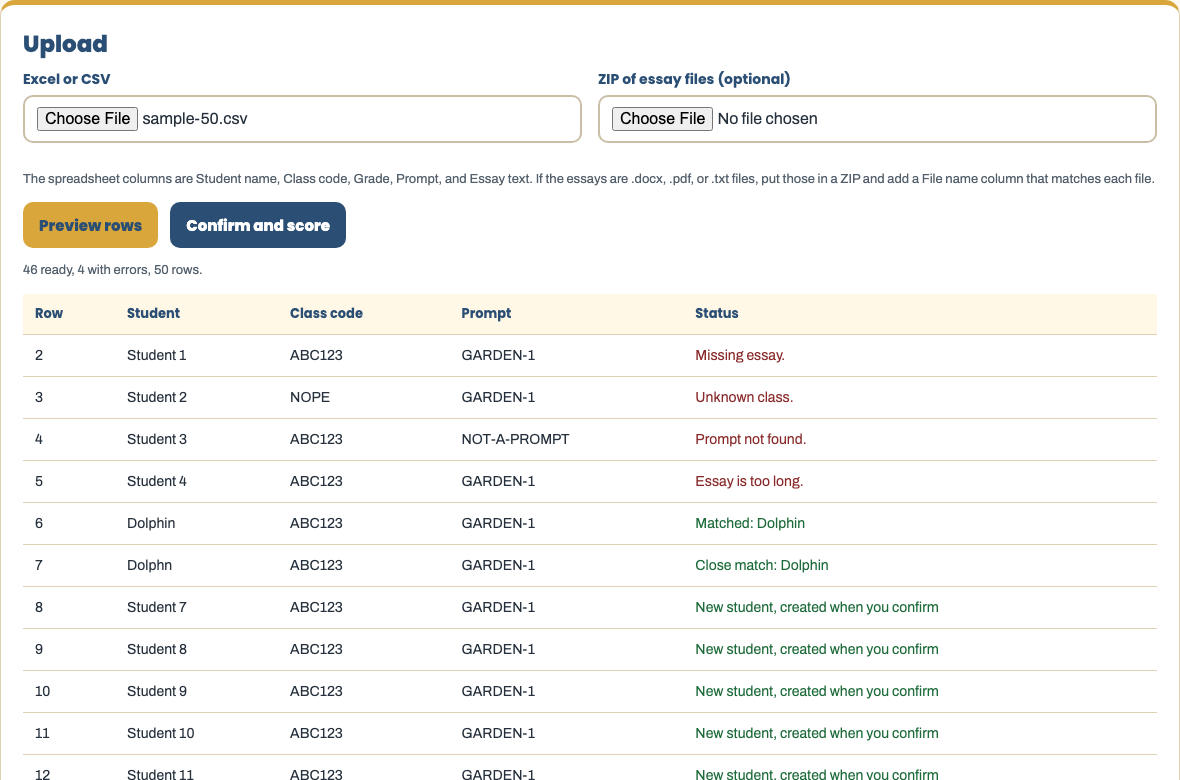
Select Preview rows. Nothing is saved yet. Each row shows a status:
- Missing essay. The essay cell is empty and no matching file was in the ZIP.
- Unknown class. The class code is not one of your classes. Check the code on the teacher dashboard.
- Prompt not found. The prompt id or title is not in the library. Paste the full prompt, or add a passage of at least 40 words if the prompt is your own.
- Essay is too long. An essay can be at most 12,000 characters.
- Matched or Close match. TBASE found the student in that class, using the same close match check students get when they join.
- New student. TBASE will create the student in that class when you confirm, if a seat is open.
Step 5. Confirm and watch the queue
- Select Confirm and score. TBASE creates any new students, then scores the ready rows.
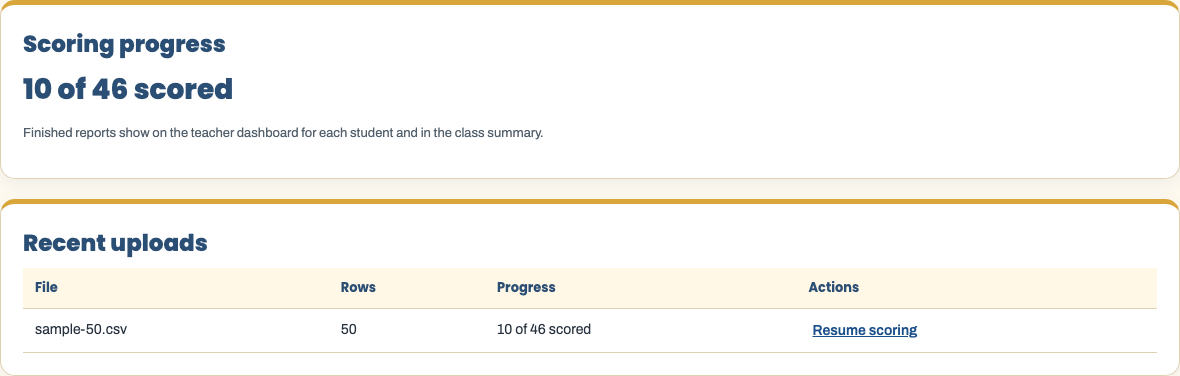
- The page shows progress such as 312 of 1,000 scored. Scoring runs in small batches so a large upload can finish without stopping the page.
- If a paper fails, TBASE tries it again. After three tries it stays in the failed count so you can see it.
- Keep the page open. If you leave, come back to this page and select Resume scoring. Papers already scored are not scored again.
Step 6. Where the results go
- Open the teacher dashboard and the class. Each student row lists the scored essay, the same way a student submission or a class set upload does.
- The class summary on that dashboard shows how many essays were scored, the average level, and the class report for that assignment.
- Students see the report on their essay page. Campus and district dashboards count the same saved reports.
Limits and a record of the upload
- Up to 5,000 rows in one upload.
- Up to 20 MB for the spreadsheet and up to 20 MB for the ZIP.
- TBASE keeps an audit record of who uploaded the file, the file name, the size, and when scoring finished.
Student writing stays on the approved scoring service. Bulk upload uses the same essay scorer as a single paper. It does not send student essays to a blocked provider.