The problem
Paper practice does not prepare students for test day.
When practice looks nothing like the test, students spend test day learning the screen instead of showing what they know.
What test day demands
Highlight a sentence. Cross out a wrong answer. Open the dictionary. Listen to the passage read aloud. Switch to Spanish. None of that lives on a worksheet.
OnSTAGE rehearses all of it, so test day feels familiar.
How it worksThe test screen
Close to the test, on purpose
Navigation, toolbar, passage on the left, questions on the right. Every screenshot on this page comes straight from the live OnSTAGE app.
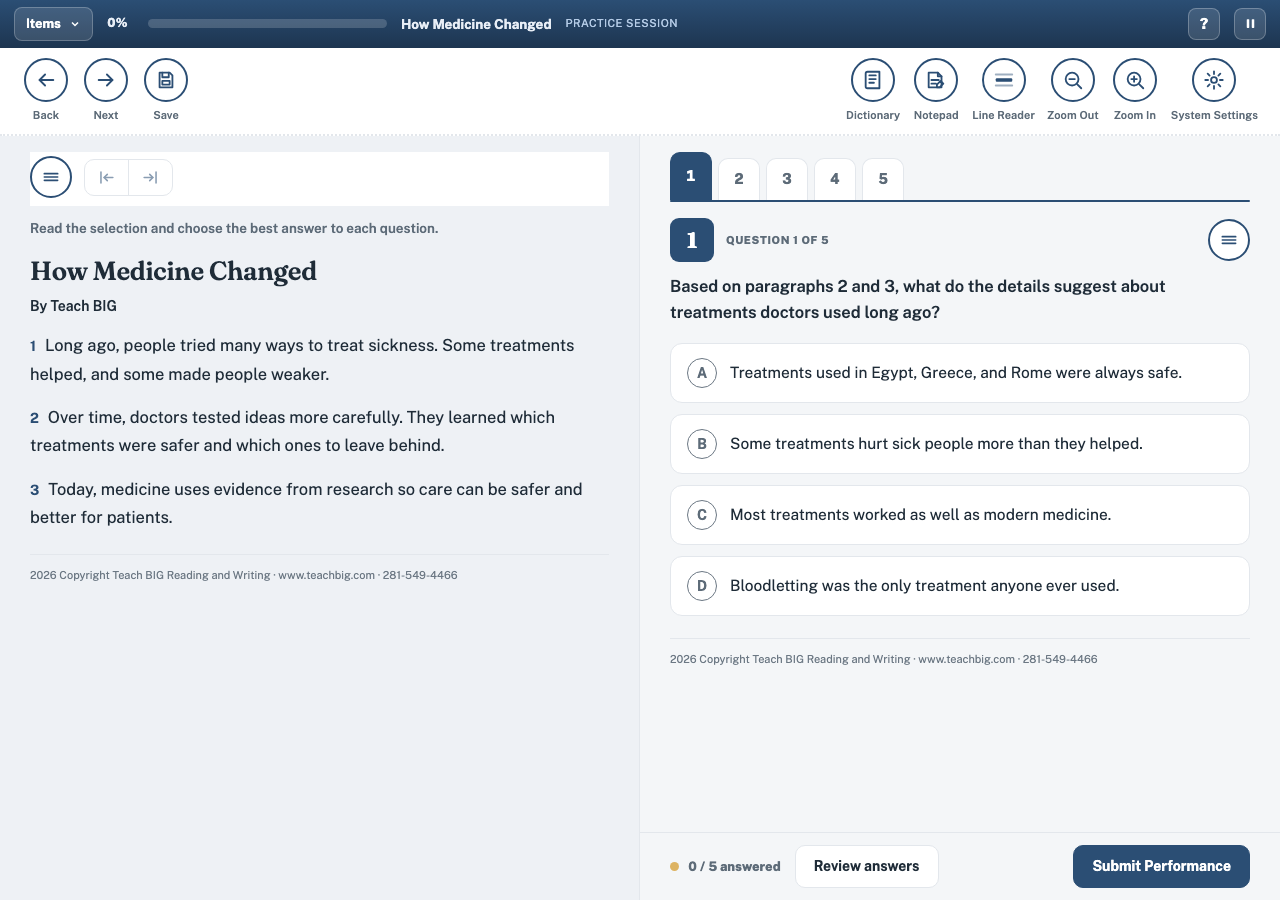
A Grade 4 reading performance in OnSTAGE: tabs for each question, answer choices with cross out controls, and the full toolbar across the top.
How it works
Three steps from practice to next move
Take a Performance
Students open a TEKS aligned passage and answer each question inside the authentic test screen.
Use the Tools
Highlight, strikethrough, dictionary, notepad, line reader, zoom, and read aloud work exactly as they do on test day.
Review the Data
Teachers open activity and TEKS reports that name the next move for each student.
Look closer at the tools students use every day.
See the accommodationsAccommodations and supports
Every support, working inside the test
These are not mockups. Each shot below was taken in the live app with the tool switched on.
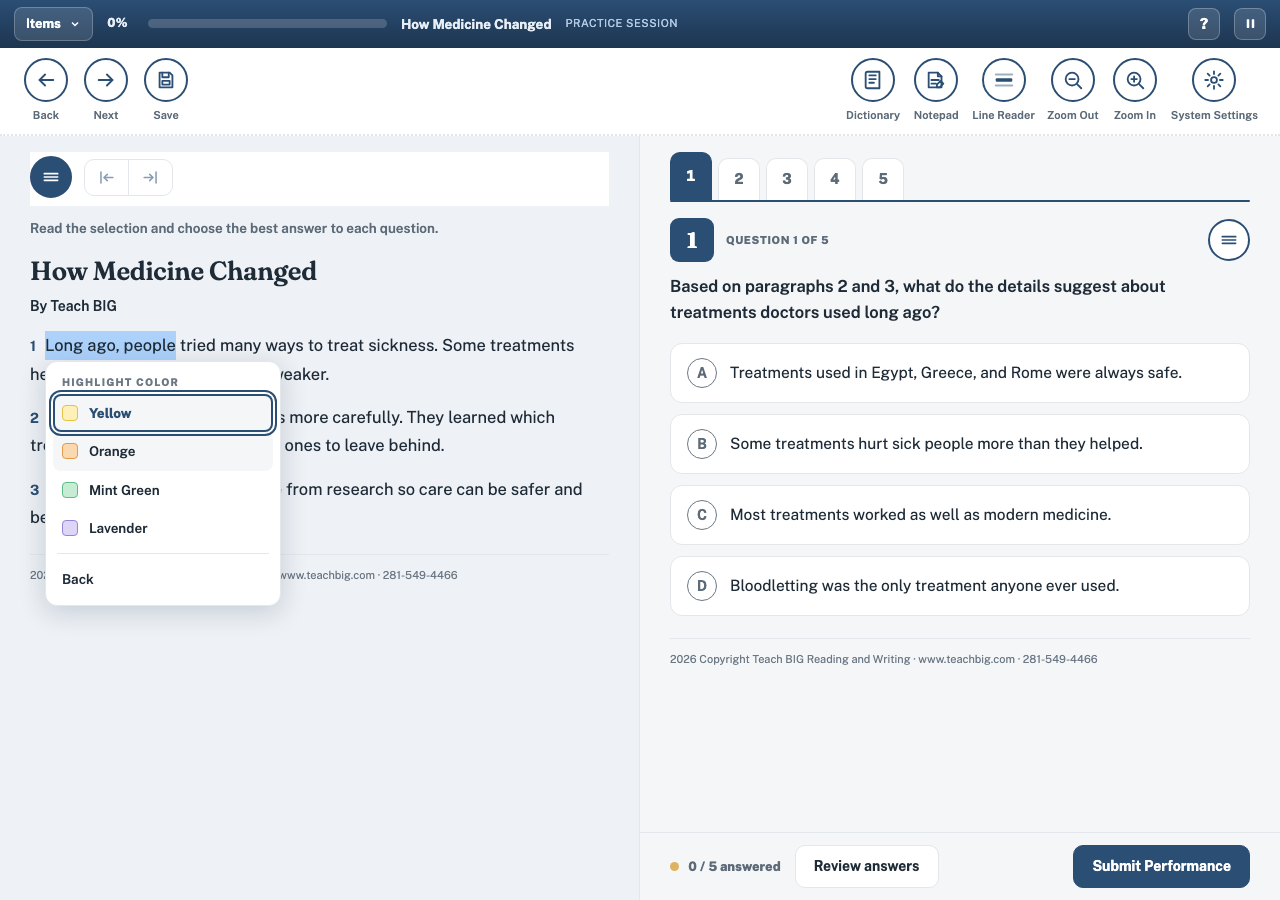
Highlighting
Students pick a color, select any sentence, and the mark stays with the passage. Four colors plus an eraser.
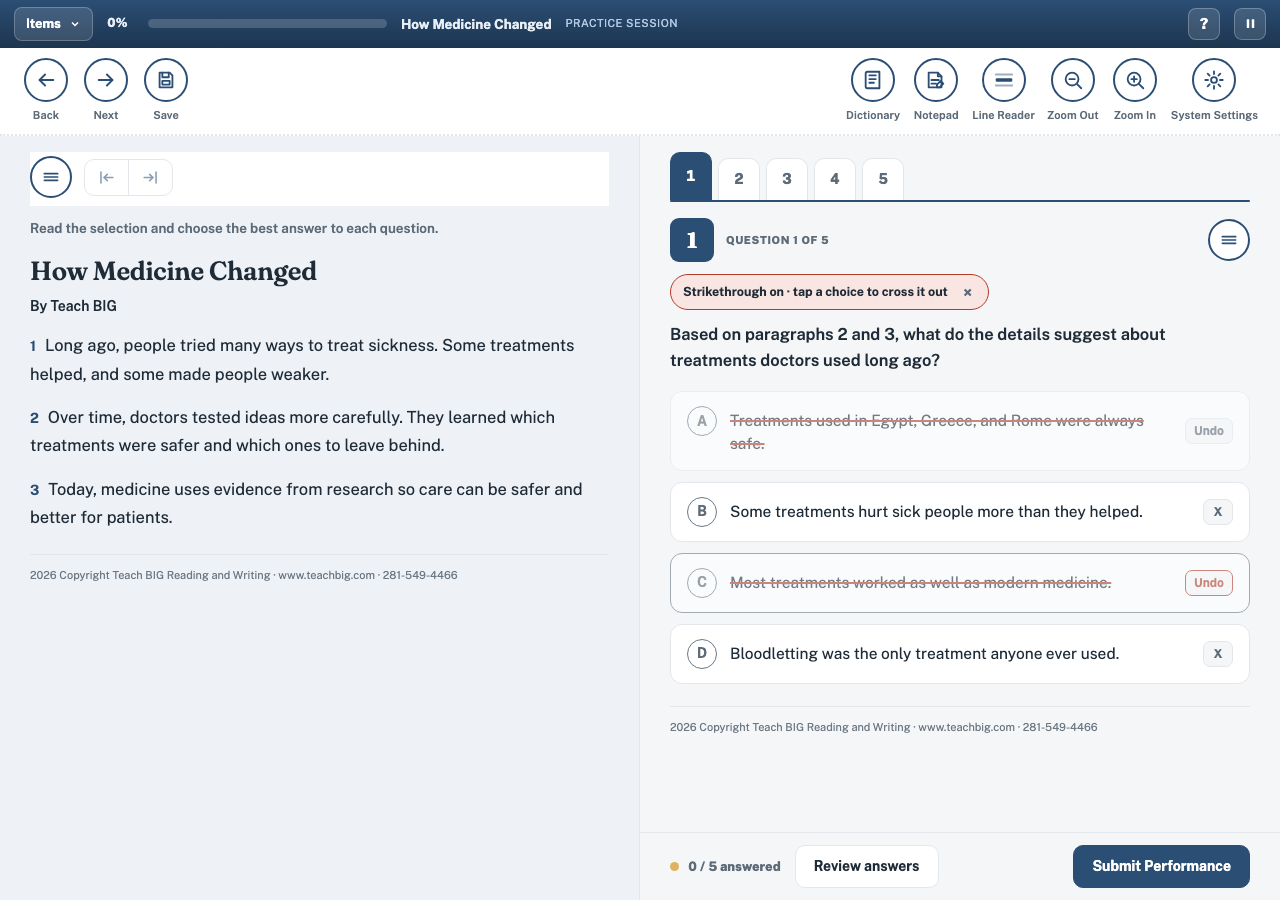
Strikethrough
Students cross out answer choices they have ruled out with one tap on the X.
Content Language Support
The full passage, every question, and every control switch to Spanish with one setting. Same TEKS, same rigor.
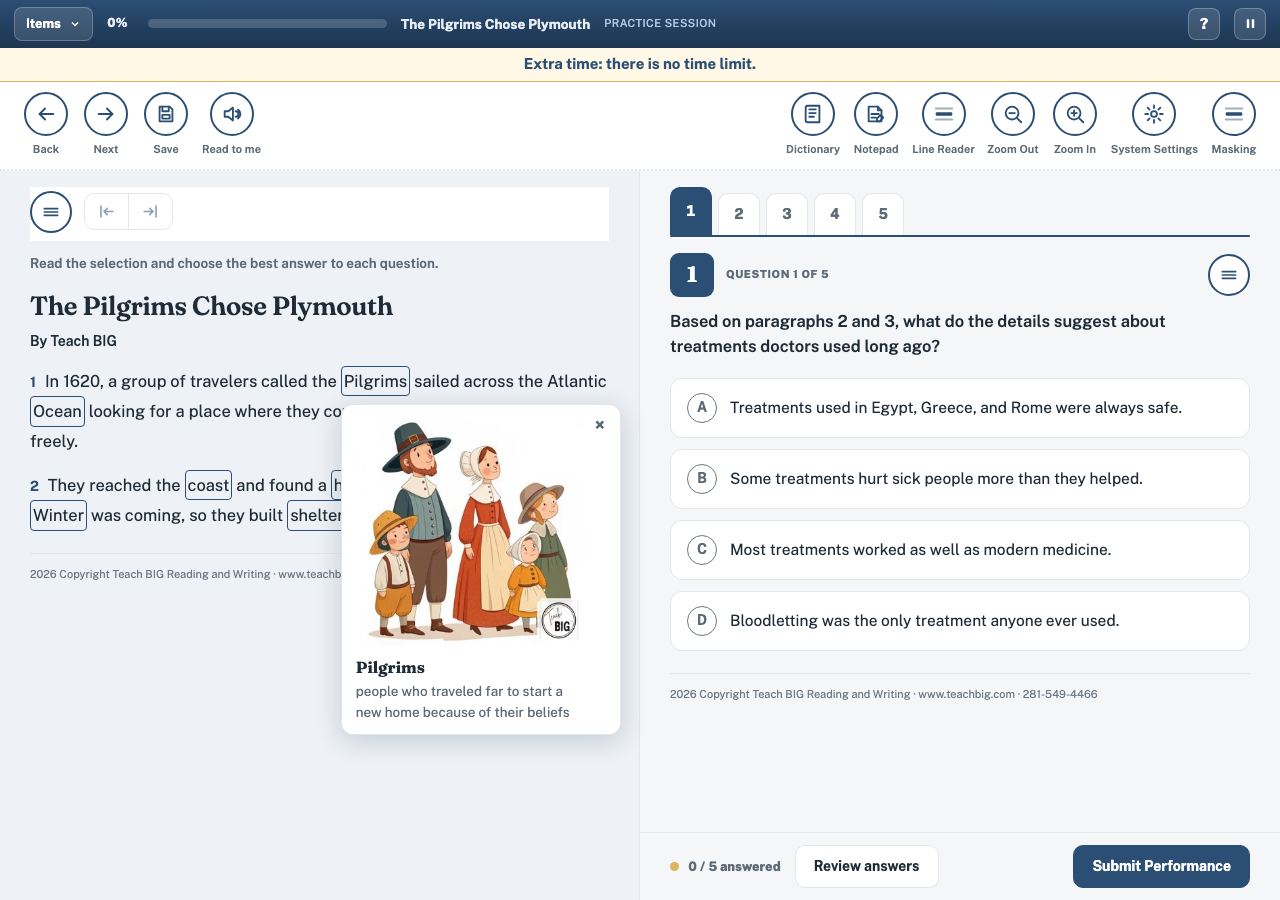
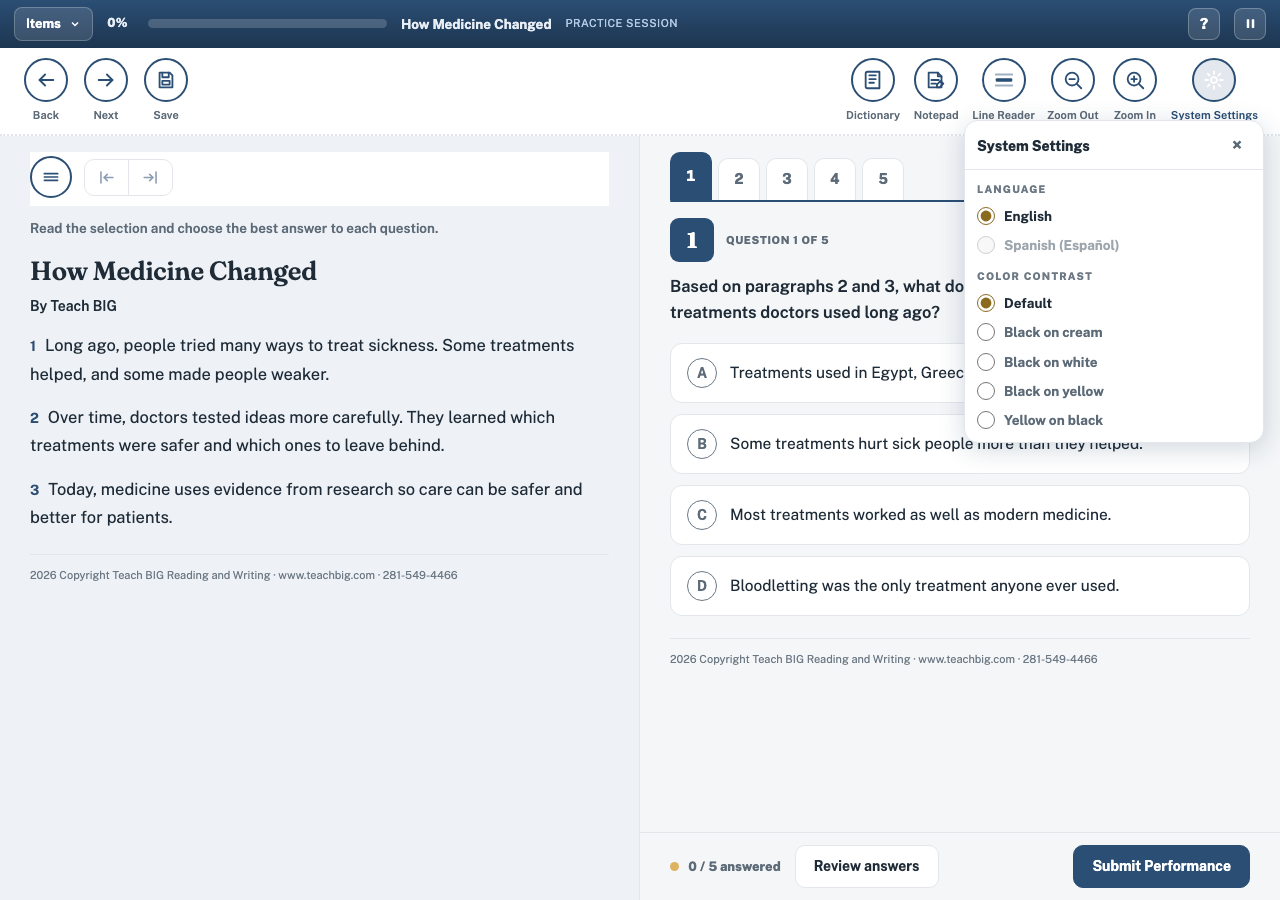
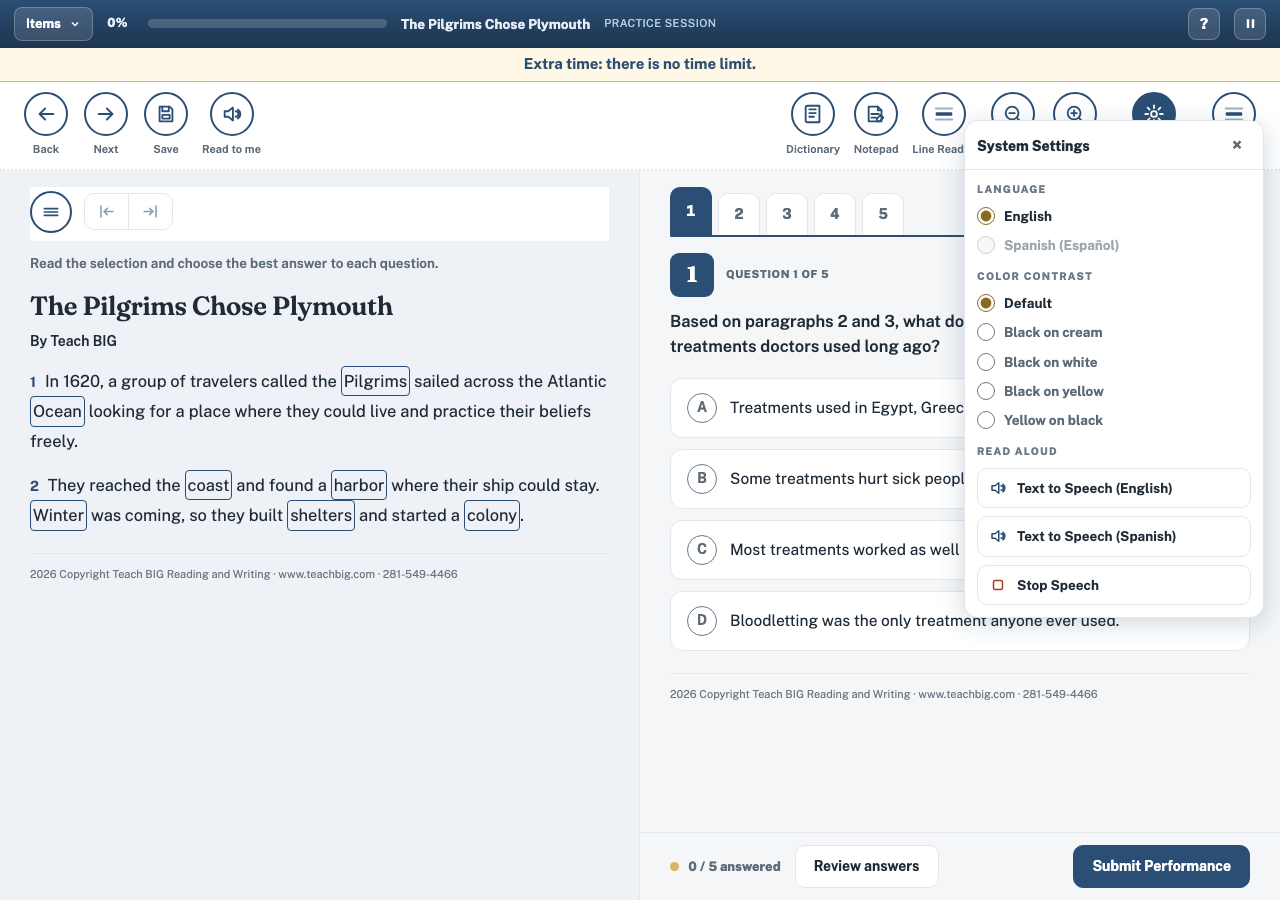
Read Aloud and Settings
Text to speech in English or Spanish, display theme, and language live in one settings panel students can reach any time.
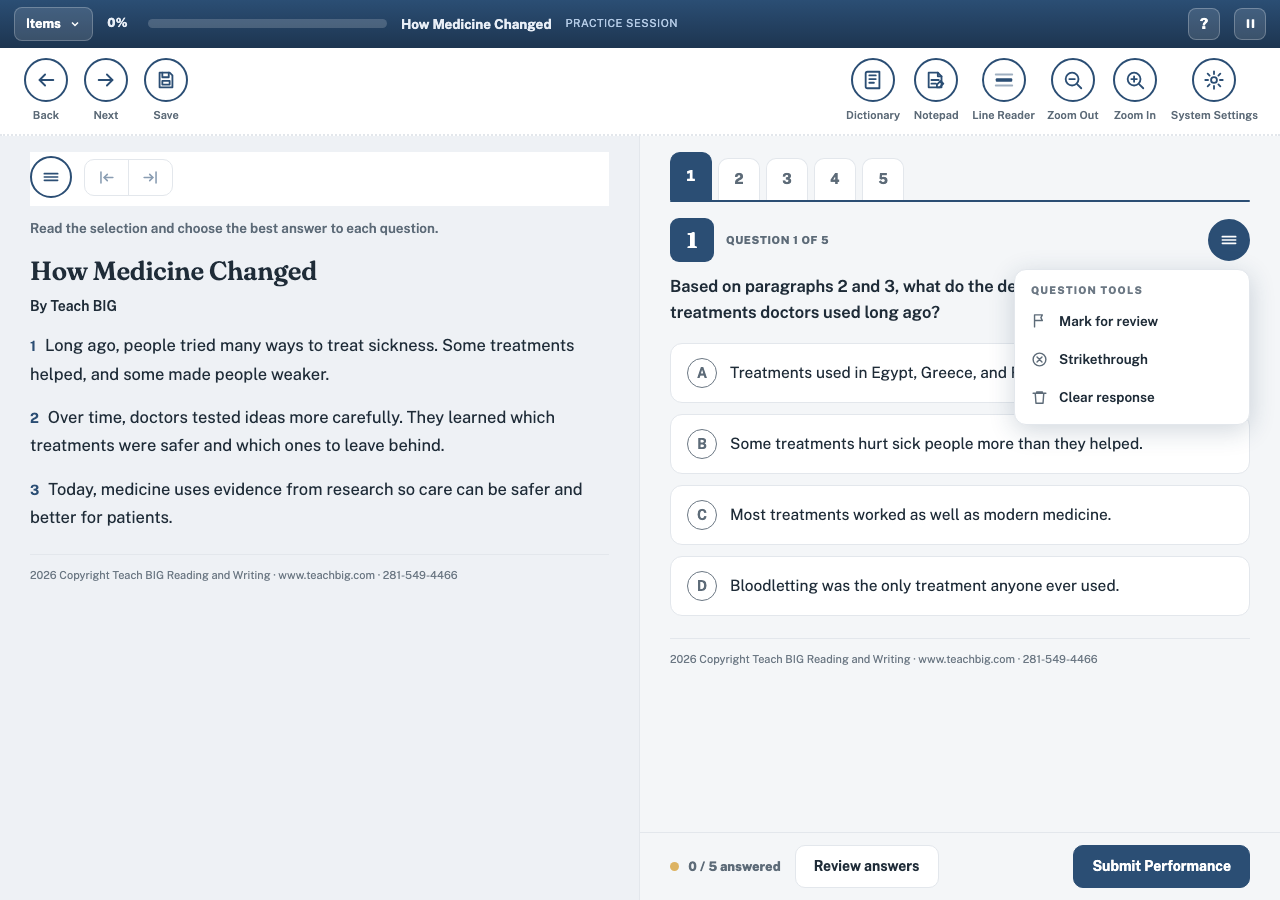
Question Tools
Mark for review flags any question to revisit before submitting. Eliminate mode crosses out choices with a tap.
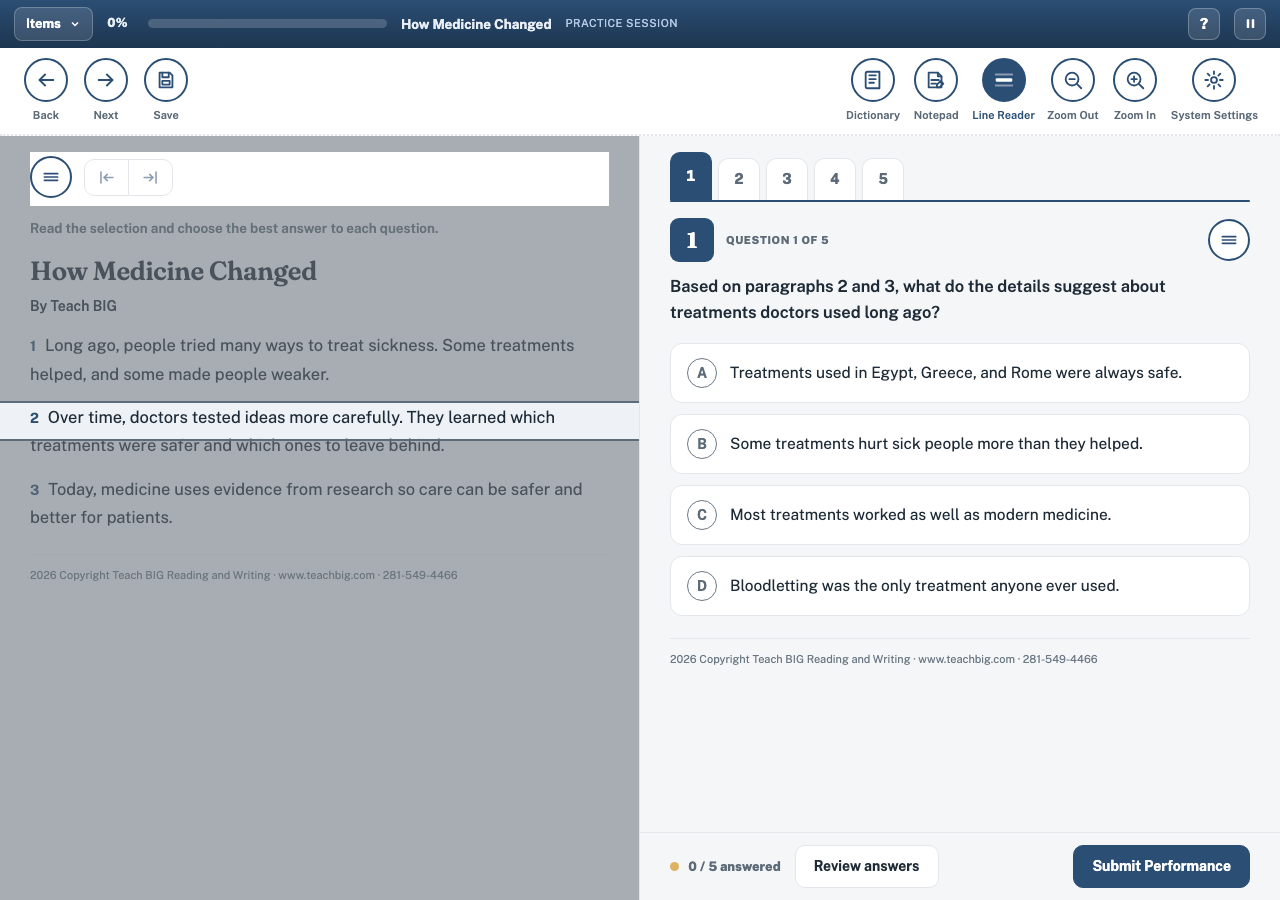
Line Reader
Line Reader grays out the rest of the passage so each student can focus on one line at a time.
Reports
Data with direction
Every report turns practice into a plan: who needs support, which TEKS to rehearse next, and how each student grows over time.
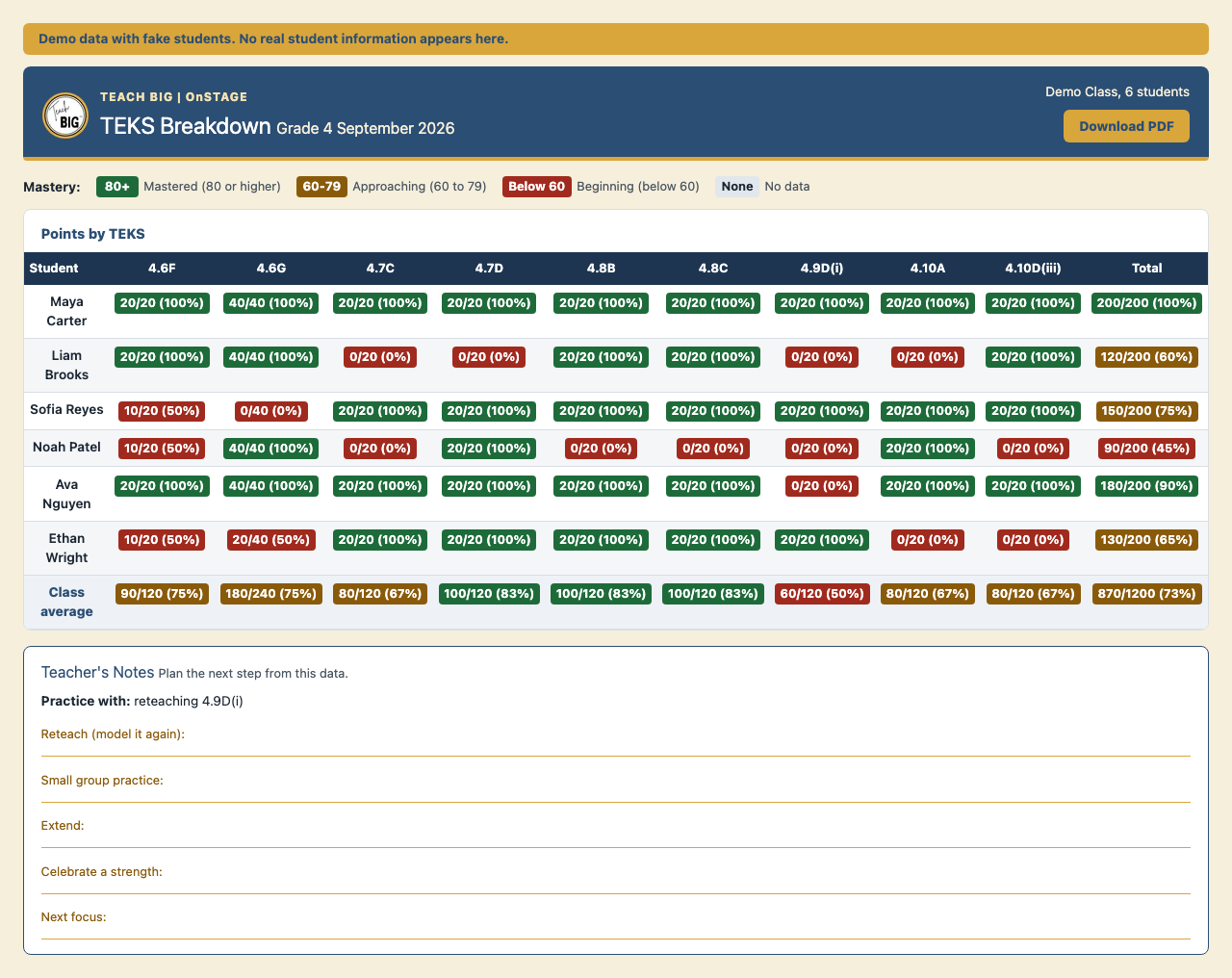
Class overview: users listed, average score, most missed TEKS, and students to watch. Each row opens activity and TEKS detail.
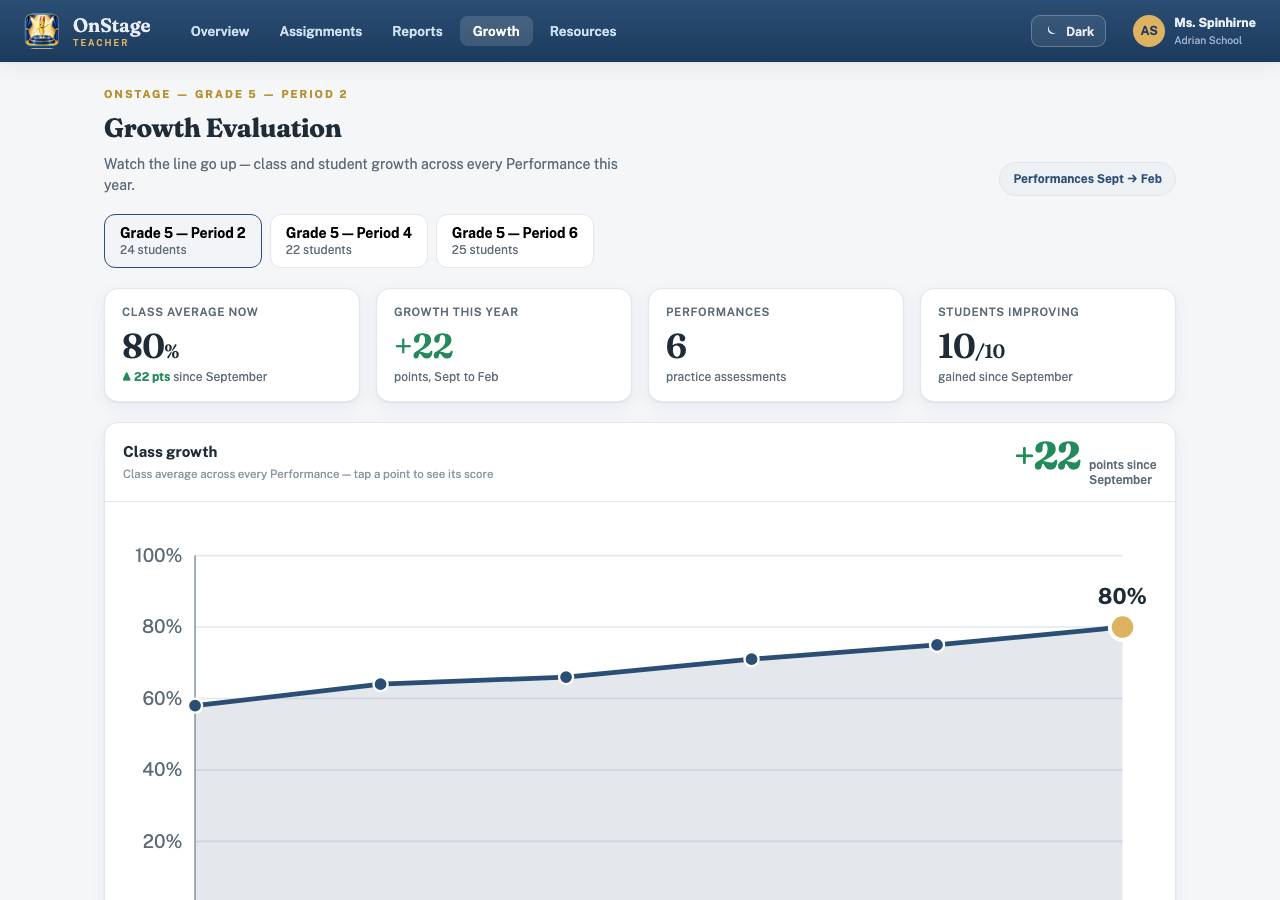
Growth view: progress across performances, so teachers see movement, not just one score.
View Activity
What each student did inside every performance.
TEKS Summary
Which standards each student missed and which to rehearse next.
Performance Review
Score plus the specific misconception behind each miss.
Growth Over Time
Line by line progress across performances for the class and each student.
Highlighter toolbox
Four colors plus an eraser
The toolbox opens beside the passage with yellow, orange, mint green, and lavender plus an eraser, so each student can mark the text in the color that helps them most.
Reports tell teachers what to teach next. See where teachers and students live in OnSTAGE.
See both viewsTwo home screens
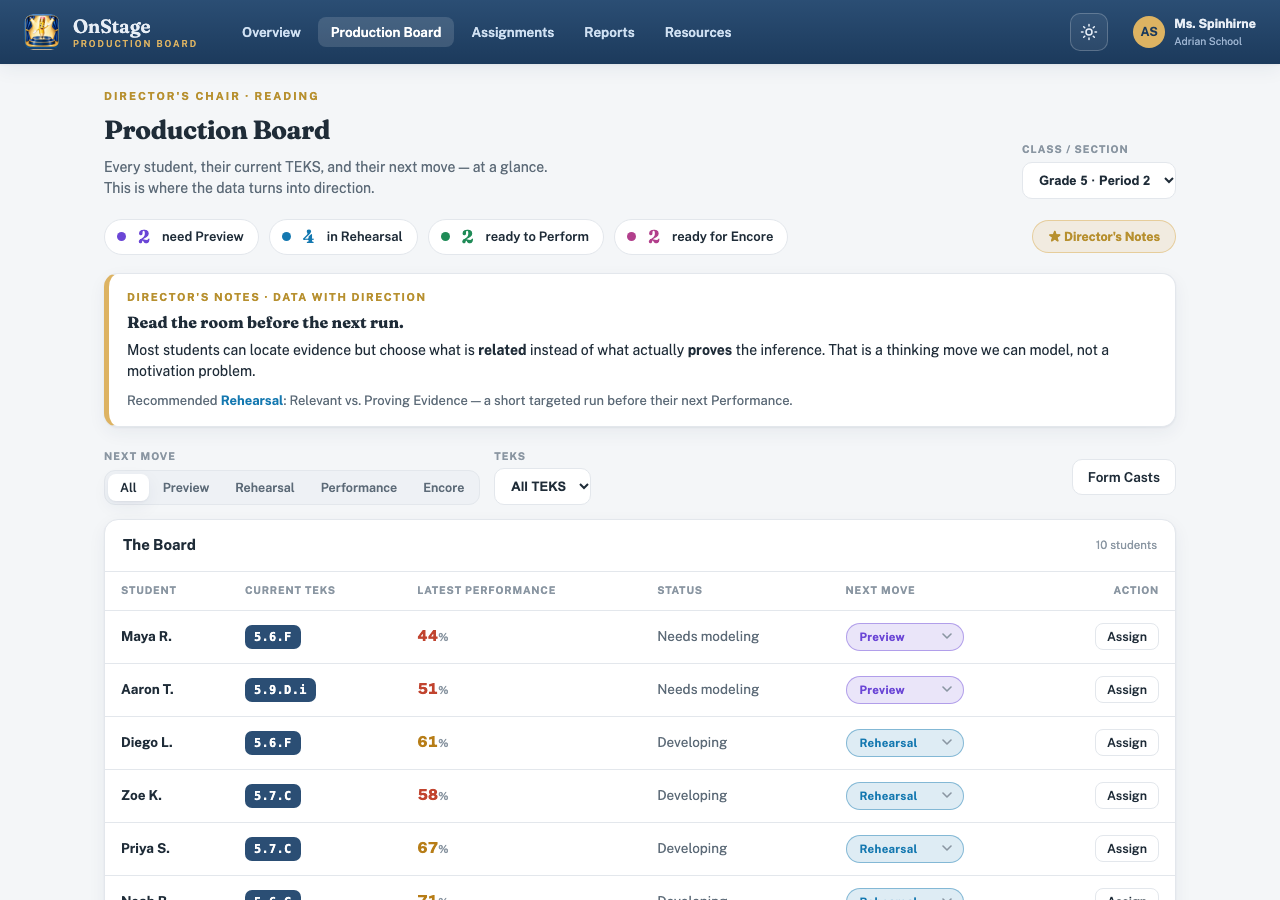
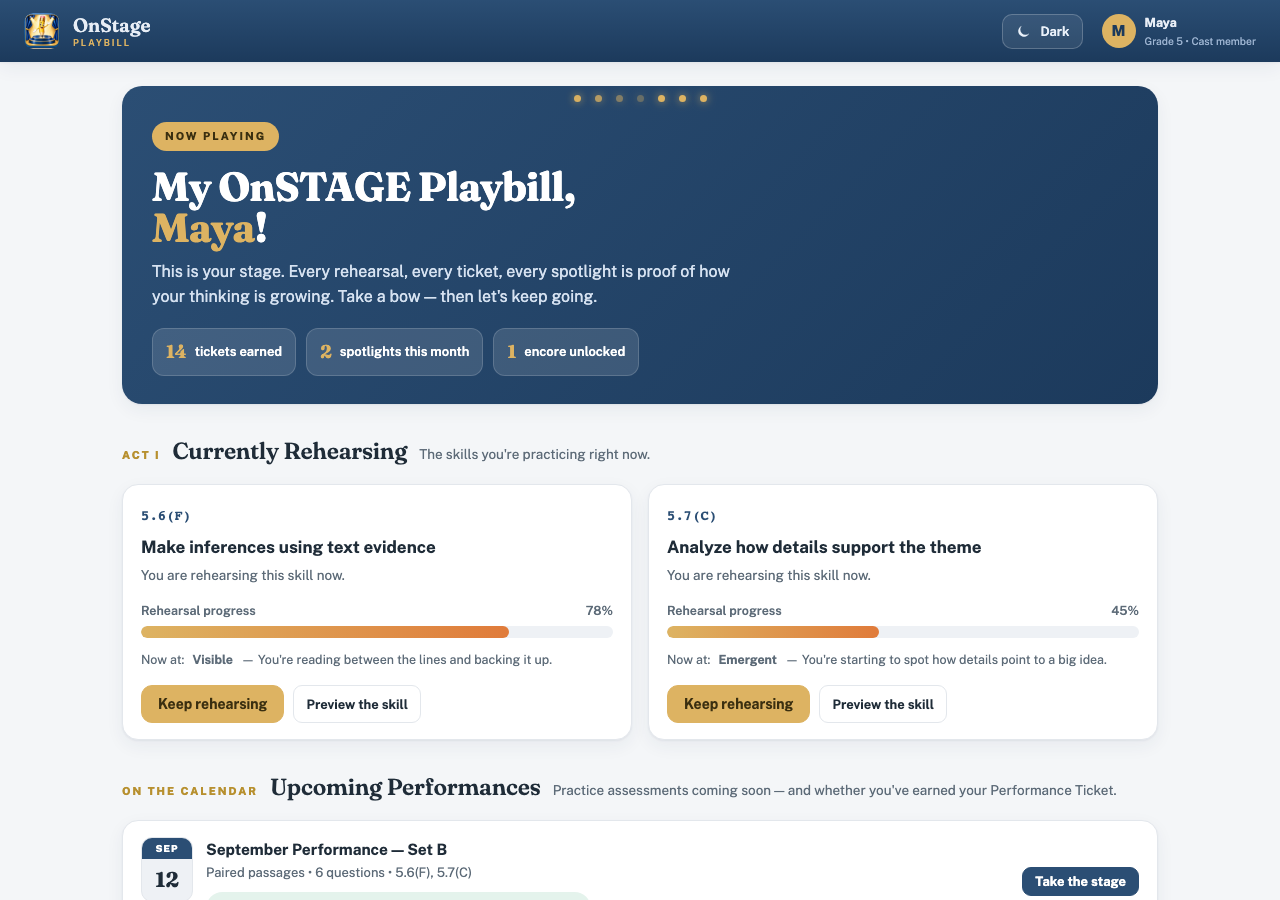
Teachers direct. Students perform.
The Production Board
The teacher class view: each student, each TEKS, and the next move.
The Playbill
The student dashboard: upcoming performances, tickets earned, and skills in the spotlight.
Questions
Frequently asked questions
How close is OnSTAGE to the real test?
The layout, toolbar, and tools mirror the official online test, so students rehearse inside a familiar screen long before test day.
Which accommodations are included?
Content Language Support, so the full passage, every question, and every control switch to Spanish with one setting. Also highlighting in four colors, strikethrough, mark for review, dictionary, notepad, line reader, zoom, and text to speech in English and Spanish.
Does Spanish cover everything?
Yes. Passages, questions, answers, and controls all switch to Spanish together, measuring the same TEKS.
What reports do teachers receive?
Activity detail per student, TEKS summaries with the next move, performance reviews with misconceptions, and growth over time for the class and each student.
Is student data protected?
Only a student's own teacher and district admins see names. All reporting follows district FERPA and data retention rules.
Which grades does OnSTAGE serve?
TEKS aligned reading performances for grades 2 through high school, with passages labeled by genre, Lexile, and purpose.
How many questions are in a performance?
OnSTAGE uses five multiple choice questions per performance. Written responses are scored in TBASE.
Pricing
Simple pricing per classroom
OnSTAGE
$149 per year for one teacher and 25 students. Add students for $5 each. Add an adult for $49.
Take the stage
Bring familiar test day practice to every student
Walk through the screens above with your team, then start the conversation about your campus.